Notice: Function _load_textdomain_just_in_time was called incorrectly. Translation loading for the stratus domain was triggered too early. This is usually an indicator for some code in the plugin or theme running too early. Translations should be loaded at the init action or later. Please see Debugging in WordPress for more information. (This message was added in version 6.7.0.) in /home/landzoom/public_html/wp-includes/functions.php on line 6121

Warning: Cannot modify header information - headers already sent by (output started at /home/landzoom/public_html/wp-includes/functions.php:6121) in /home/landzoom/public_html/wp-includes/feed-rss2.php on line 8
Getting Started – Custom Zoom Pages https://landingpageexpressforzoom.com The Fastest Way to Build an Amazing Sign Up or Landing Page for a Zoom Meetings or Webinars Wed, 17 Sep 2025 01:58:38 +0000 en-US hourly 1 https://wordpress.org/?v=6.8.3 Update from Zoom https://landingpageexpressforzoom.com/docs/manual-refresh-from-zoom/ Fri, 04 Dec 2020 02:59:04 +0000 https://landingpageexpressforzoom.com/?post_type=docs&p=14860 Read More]]>

The LPE4Z plugin ties into Zoom’s API to pull all of your Zoom Webinar and Meeting information including the:

  • Event ID
  • Event UUID
  • Title
  • Description
  • Date/Time
  • Duration

So anytime you create a new event or make any edits/changes to existing events in Zoom, just click on the Manual Refresh from Zoom button at the top of the page in the LPE4Z plugin and a few seconds later when the page refreshes, like magic you will see all of those updates will appear and you can proceed customizing your landing page.

]]>
Set Up – Configuration Tab https://landingpageexpressforzoom.com/docs/setup-config-tab/ Wed, 11 Nov 2020 14:15:51 +0000 https://landingpageexpressforzoom.com/?post_type=docs&p=14609 Read More]]>

Stye Redemption Code

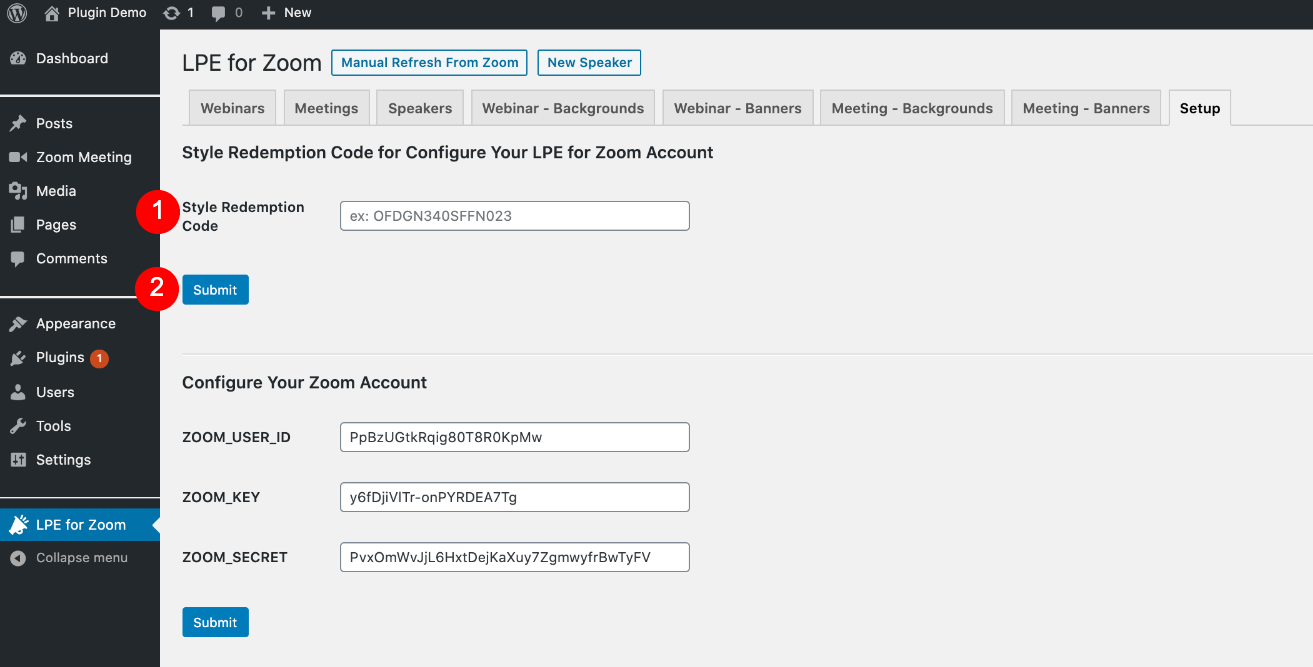
In the LPE4Z plugin, go to the Setup tab and paste in the Style Redemption Code that was provided in your sign up confirmation email.  This code will determine if you have the basic or premium account and functionality.

Configuring Your Zoom Account

Note:  If you have already set up your Zoom API keys, you can skip steps 1-6 and in your Zoom account go to Settings and then scroll all the way to the bottom of the screen to the Integration Authentication area and click on show (eye icon) or to create/issue a new key you can click on the Regenerate button to get new ones.

Obtaining Your Zoom API Keys from the Zoom Marketplace

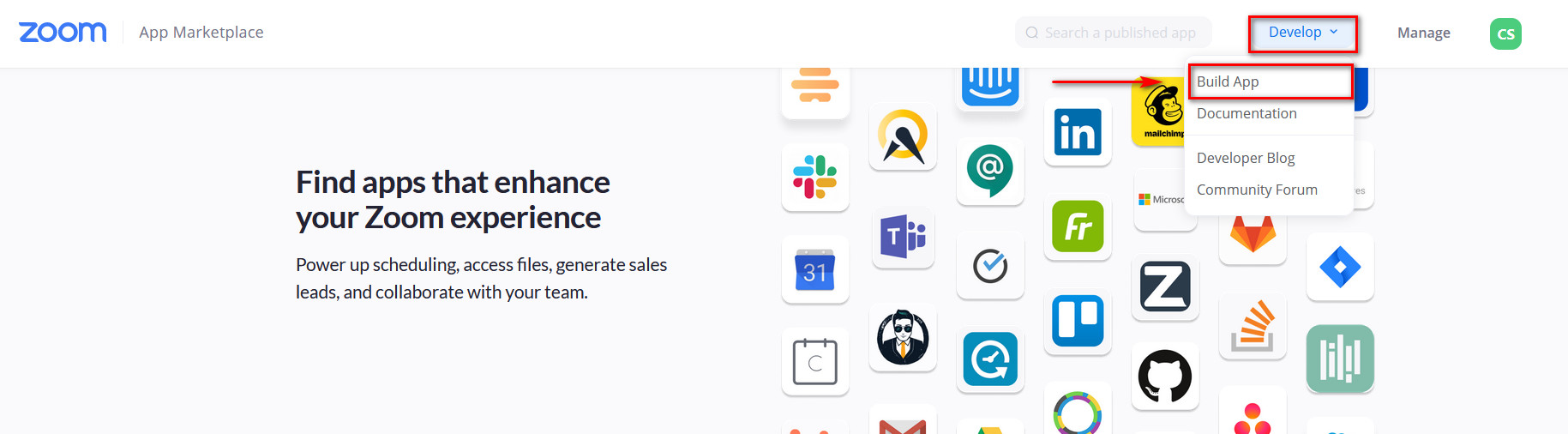
1. To obtain your API Key and Secret Key for your Zoom account, go to the Zoom Marketplace, login (with your normal Zoom account credentials), and then click on Develop > Build App

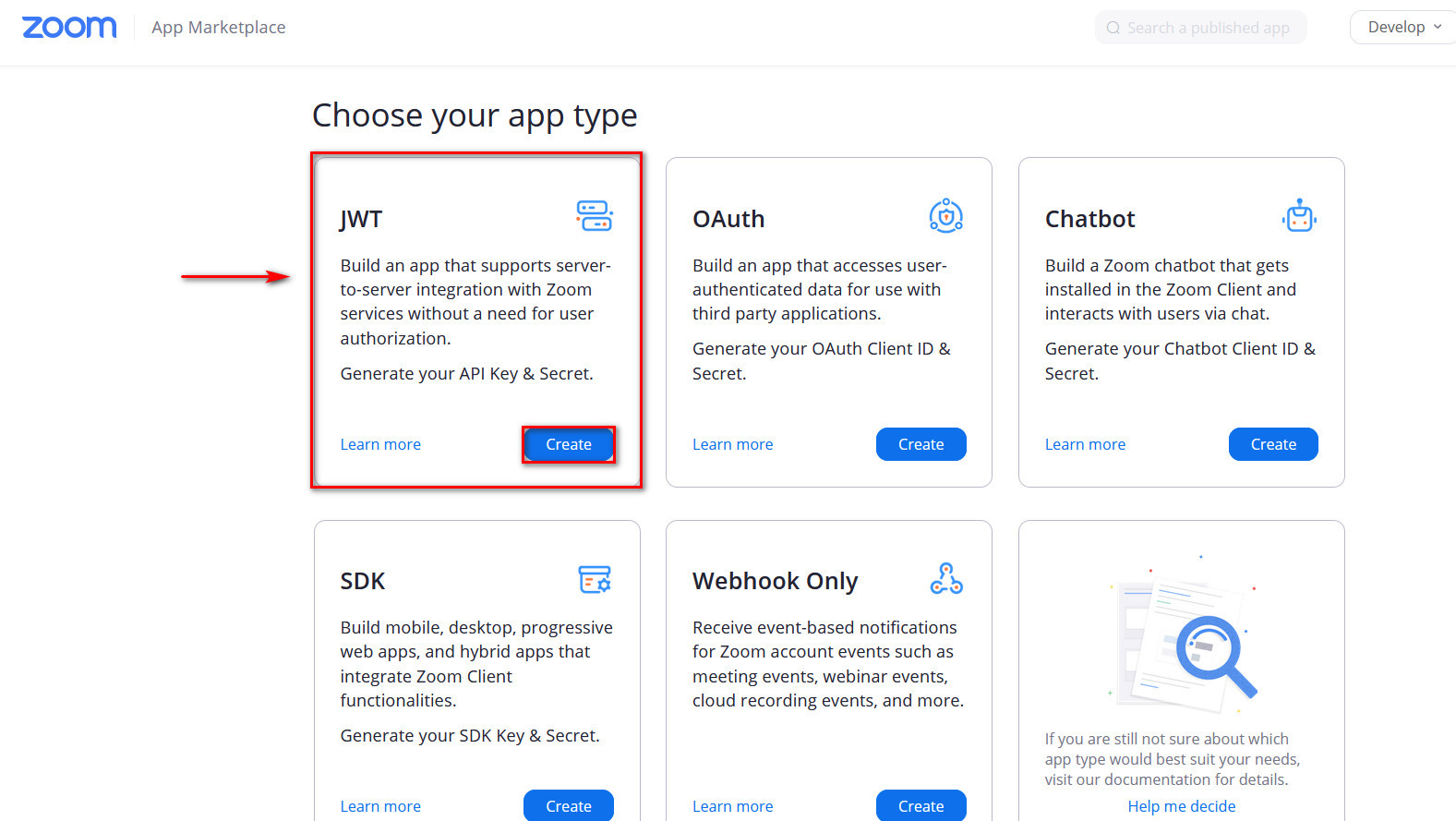
2. To receive your Zoom API keys, lick Create under the app type named JWT

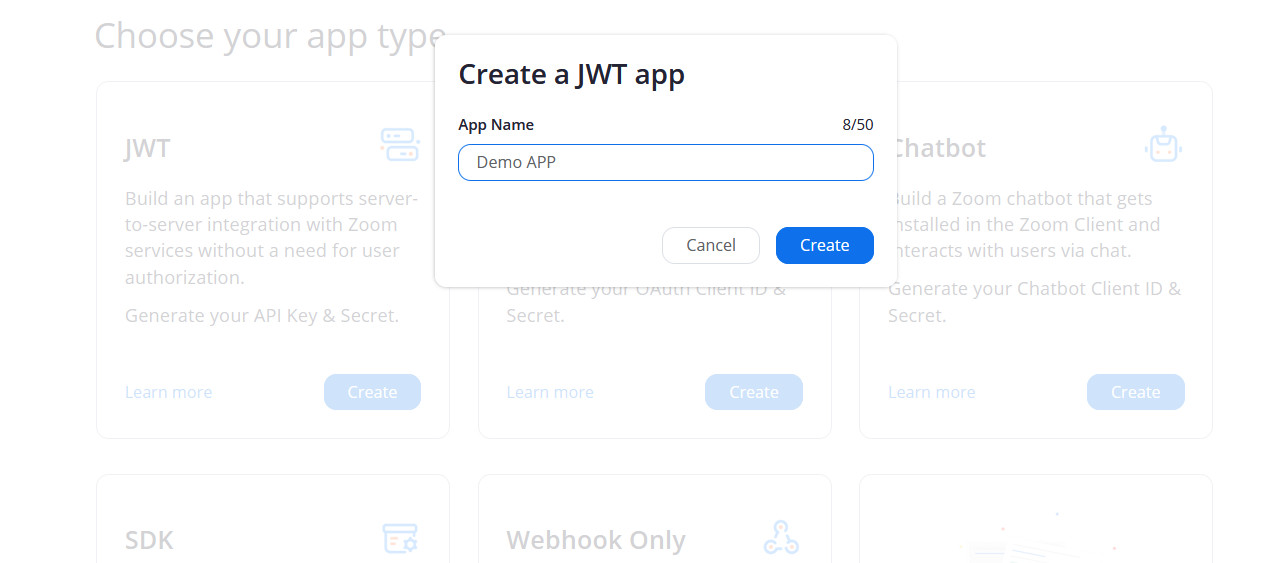
3. Give your App a name. You can use your website name, for example. Then click the Create button

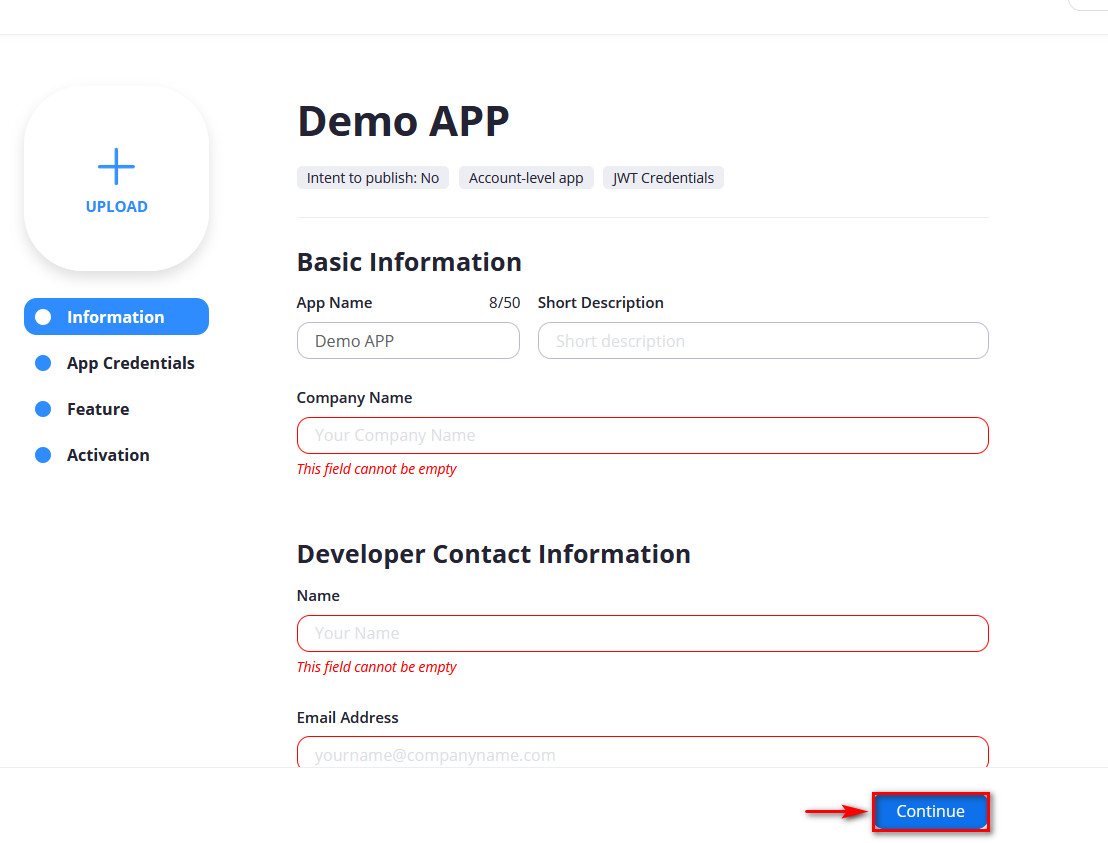
4. Next, fill in the information includes things like your name, email, and your company’s name, and click Continue.

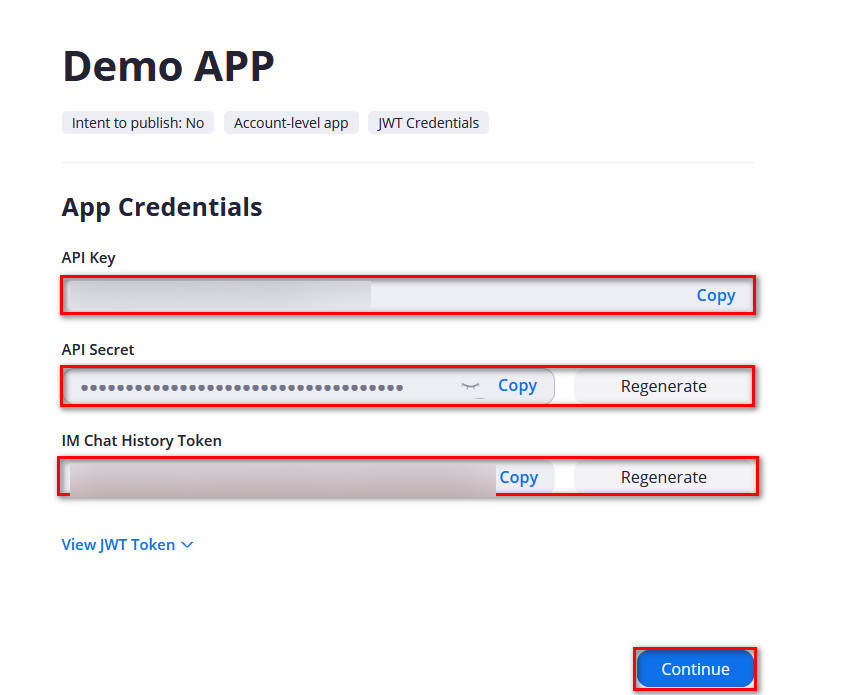
5. Now, you’ll see your Zoom API keys. Copy all of these keys and save them somewhere handy as you’ll need to paste them back in your plugin settings. Then, click Continue.

Note: You do not need to utilize the IM Chat History Token info

6. The feature section will ask if you want to opt-in to their event subscription feature, You can choose not to opt-in and directly click Continue.

Now, the website will inform you that your app is activated. And your API is ready to be enabled.

Note:  To check your app details, you can go to the Manage section of the Zoom website. There, you will find your app details along with the API keys if you ever lose them.

Obtaining Your Zoom_User_ID from Your Zoom Account

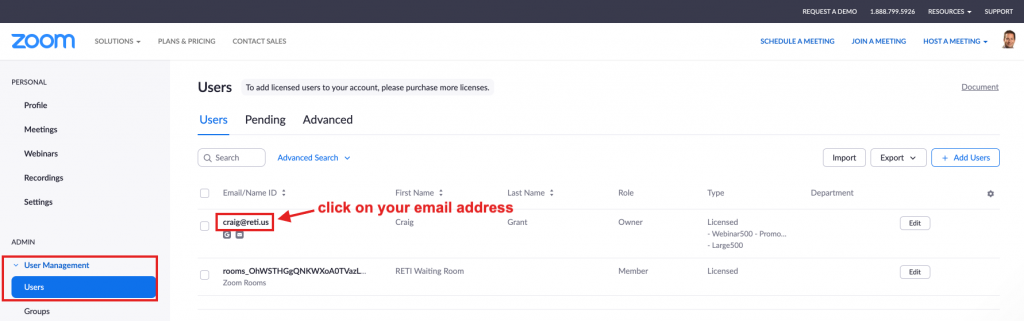
1.  Go to your Zoom Account and go to User Management> Users>

Zoom Account User Management screen image

2. Click on your email mail address for your profile which sends you to your Profile edit screen

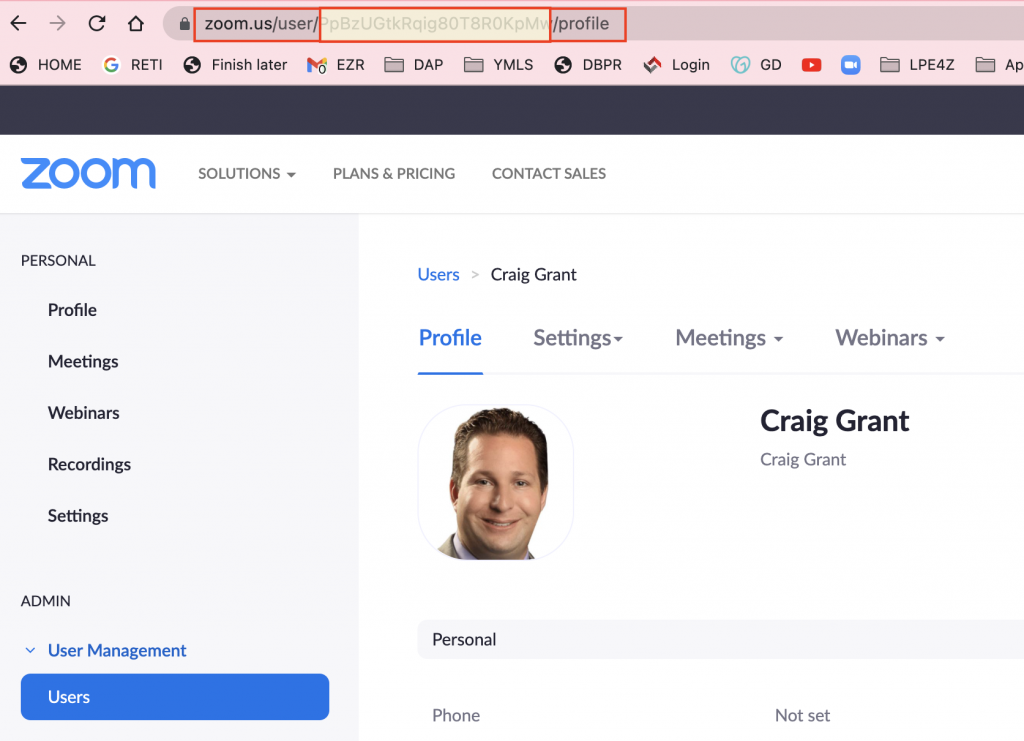
3. In your browser’s address bar, you will see a URL that looks like this: https://us06web.zoom.us/user/userID/profile copy just the userID that is in between the user & profile.

For example in this URL:

https://us06web.zoom.us/user/PpBzULtkRqig8098R0bpMw/profile

The User ID = PpBzULtkRqig8098R0bpMw

Zoom User Profile Edit Screen

Add Your Zoom API Keys to the Setup Tab in the LPE4Z Plugin

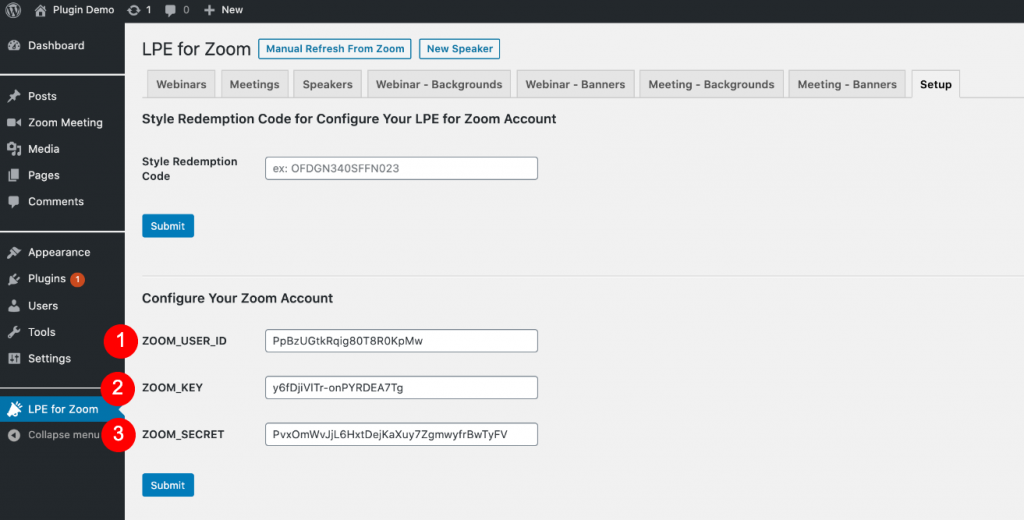
Copy the Zoom User ID, Zoom API Key, & Zoom API Secret Key obtained from the steps defined above and paste them into the corresponding spots on the page and then click the Submit button.

Once this is complete, you can click on the Manual Refresh from Zoom button at the top of the page and it will connect to your Zoom account and pull your Webinar and Meeting events into the respective tabs.

]]>
Purchase & Install https://landingpageexpressforzoom.com/docs/install-setup/ Tue, 10 Nov 2020 19:23:57 +0000 https://landingpageexpressforzoom.com/?post_type=docs&p=14548 Read More]]>

Step 1: Purchase

Once you have purchased the plugin from the WordPress Plugin or Zoom Marketplaces or directly from the LPE4Z website, you will be sent an email that contains the following information:

  1. Welcome to the LPE4Z network with your account login information
  2. Link and attachment to the plugin install files
  3. Your account redemption code

Step 2: Install the LPE4Z Plugin

1. Download the plugin install file to your device.
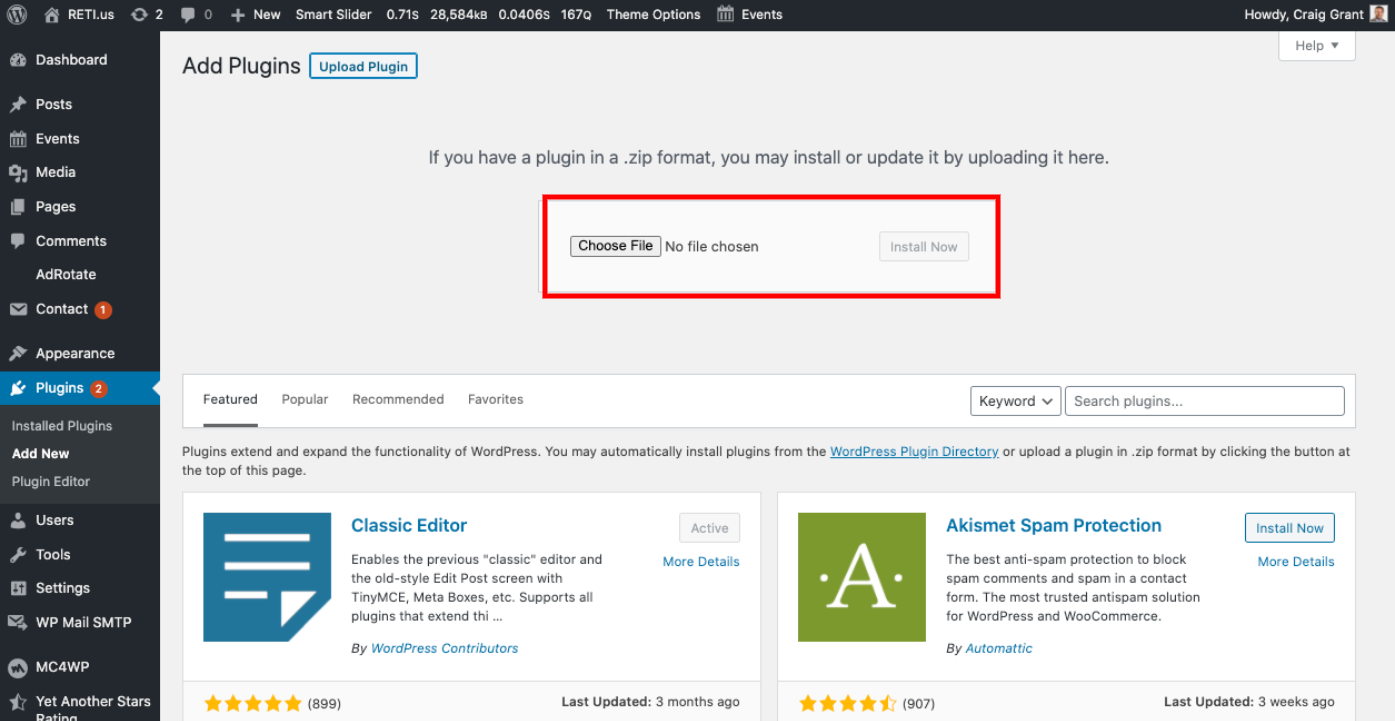
2. In your WordPress admin, go to Plugins > Add New and then click on the Upload Plugin button at the top of the screen.

3. Then click on the Choose File button, locate the plugin install zip file and then click on the Install Now button.   


A few seconds later it will ask you to click on a link to Activate the Plugin, once you do so it will be installed and show up as a new menu item in the main left rail navigation in WordPress

]]>